

We have heard this request more times than we can count. And we are happy to finally say: it is happening.
Realcore 4.0 will include a native QuickBooks Online integration. No third-party connectors. No workarounds. Just a direct link between your Realcore billing data and your QuickBooks Online account.
Here is what that means for your workflow and how it works.
Why This Was Built
If you use QuickBooks to manage your general ledger, you already know the pain point. Every time an invoice was generated in Realcore, someone had to turn around and manually recreate that invoice in QuickBooks — customer record, line items, amounts, payment terms, all of it. Re-keyed by hand. Every time.
That process is slow, it is tedious, and it creates real risk. Transposition errors happen. Invoices get missed. Your books drift out of sync with what is actually in Realcore. And by the time you notice, reconciling the two systems can eat up hours.
The QuickBooks integration eliminates all of that. Realcore becomes your system of record, and your QuickBooks account becomes the downstream ledger. Data flows in one direction — Realcore to QuickBooks — automatically, without anyone having to re-enter a thing.
How It Works
The integration is built around two phases: a one-time setup and then routine use as part of your normal billing workflow.
One-Time Setup
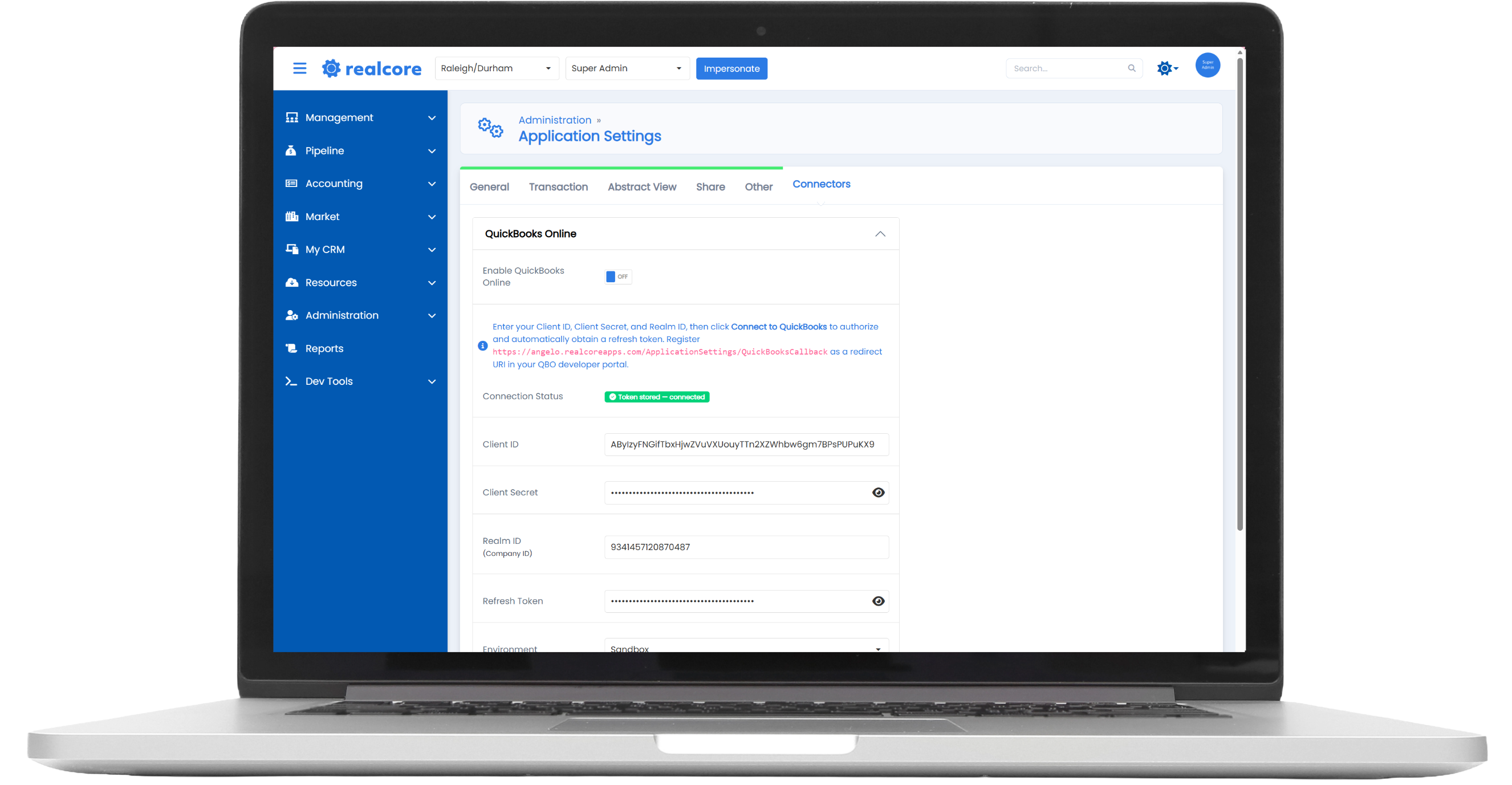
The connection is configured in Administration > Application Settings, under a new Connectors tab. From there, you will find the QuickBooks Online panel where you enter your credentials and authorize the connection.
Getting connected requires a QuickBooks Online subscription and an Intuit Developer account with a registered app for the Realcore integration. Your administrator will need the Client ID, Client Secret, and Realm ID (also called Company ID) from that app — these are the credentials that allow Realcore to communicate securely with your QuickBooks account.
Once your credentials are entered and saved, you authorize the connection through a standard QuickBooks login — a popup opens, you sign in, and the connection is established. From there, you can test the connection to confirm everything is communicating correctly before you push any real data.
Setup is a one-time process. Once it is done, your accounting team does not need to touch the configuration panel again unless the connection needs to be reauthorized.
Routine Use
After setup, the integration becomes part of your existing billing workflow with minimal added steps.
The process starts the same way it always has: invoices are prepared and marked ready in the Billing section of Accounting. Once an invoice is marked as Sent, it moves to the Outstanding Income tab — and that is where the QuickBooks sync lives.
From Outstanding Income, your accounting staff can push invoices directly into QuickBooks Online. The customer record, invoice details, line items, amounts, and payment terms all transfer over automatically. Each synced invoice also carries a Realcore Deal ID reference, so if you ever need to trace a QuickBooks entry back to the original transaction, it is right there.
No re-keying. No switching back and forth between systems to manually match records. Just a sync, and your books are up to date.
What It Means for Month-End
This is where the impact really adds up. Right now, if your books in QuickBooks are only as current as your last batch of manual entries, there is always a lag between what Realcore shows and what your general ledger reflects. That lag compresses at month-end into a reconciliation crunch.
With the integration in place, your QuickBooks account stays current as invoices are sent. By the time month-end arrives, the reconciliation work is already done.
Getting Ready
You do not need to do anything to prepare right now — we will provide full setup documentation and training support when 4.0 launches. If you want to get a head start, it is worth making sure your QuickBooks Online account is organized and that your customer records are clean and free of duplicates before you enable the sync. A tidy QBO account will make the initial connection go much more smoothly.
We will share more details on the setup process as Angelo gets closer to launch. As always, if you have questions in the meantime, reach out to our support team.